
Watch the walkthrough
 Play tutorial 5:44
Written walkthrough. Follow the steps below alongside the video, then configure and test your own setup.
1. Prepare one device you can check
Connect a Windows test device with Pro capabilities and the required remote controls enabled. Sign in with an authorised account, give the device a recognisable name and use fictional data with no customer details on screen. Confirm that the connected Windows session supports screen access and remote interaction.
Choose a short workflow you have already validated locally. Set a loop limit or other appropriate stop condition, and choose a harmless application setting whose effect will be visible in the output. The tutorial follows Reports-East and Reports-West, two fictional devices within its simulated fleet.
2. Identify the device and check freshness
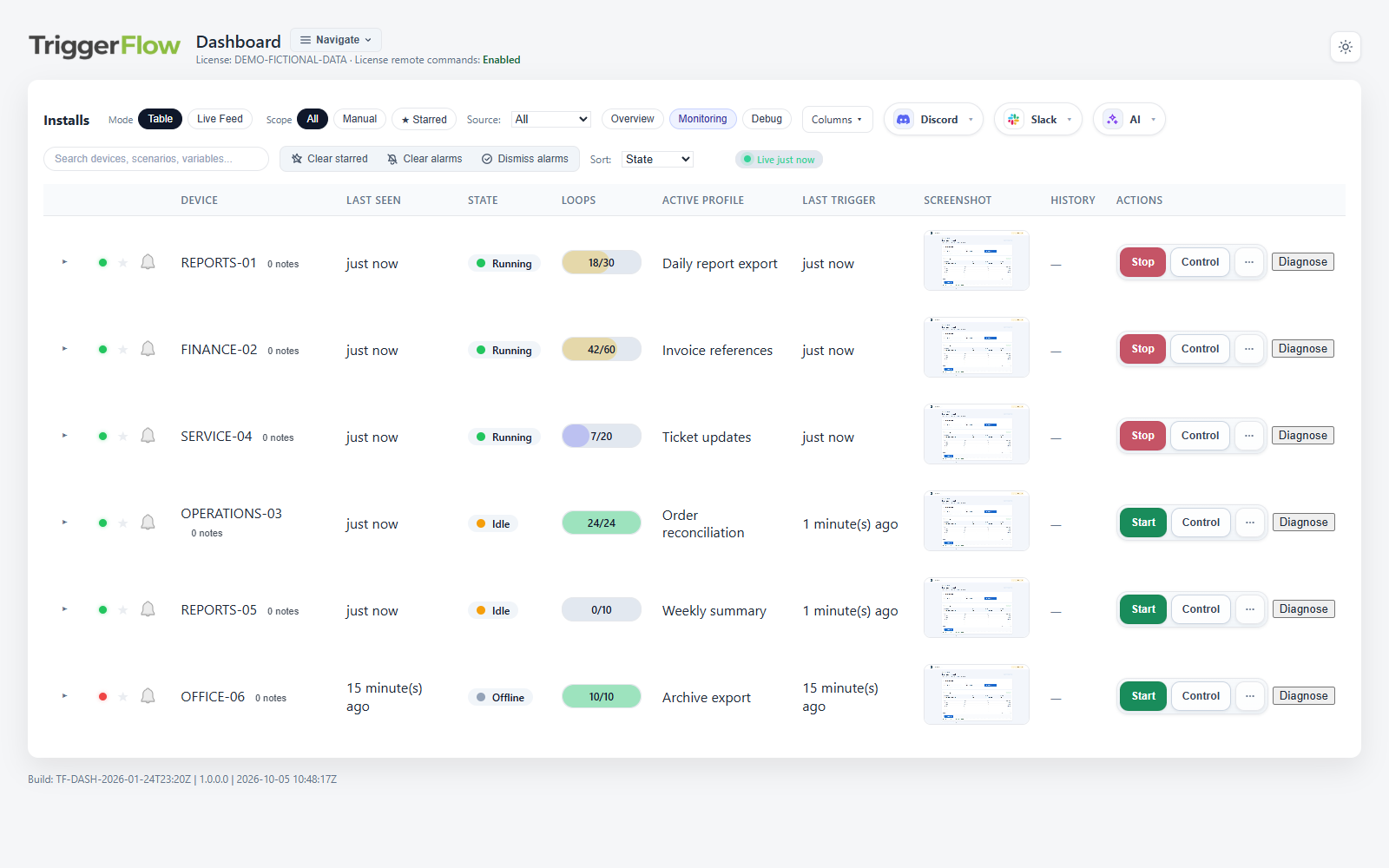
Switch to Table and filter for the intended device. Check its name, Active Profile, State and Loops before choosing an action. In the video, filtering for Reports brings the East and West examples into view.
Last Seen shows recent contact with the device; telemetry shows when its workflow status was reported. If the device has stopped checking in, verify connectivity and wait for fresh information before continuing. Each row has its own progress and controls.
 View full-size screenshot
 3. Open the screen and understand the state
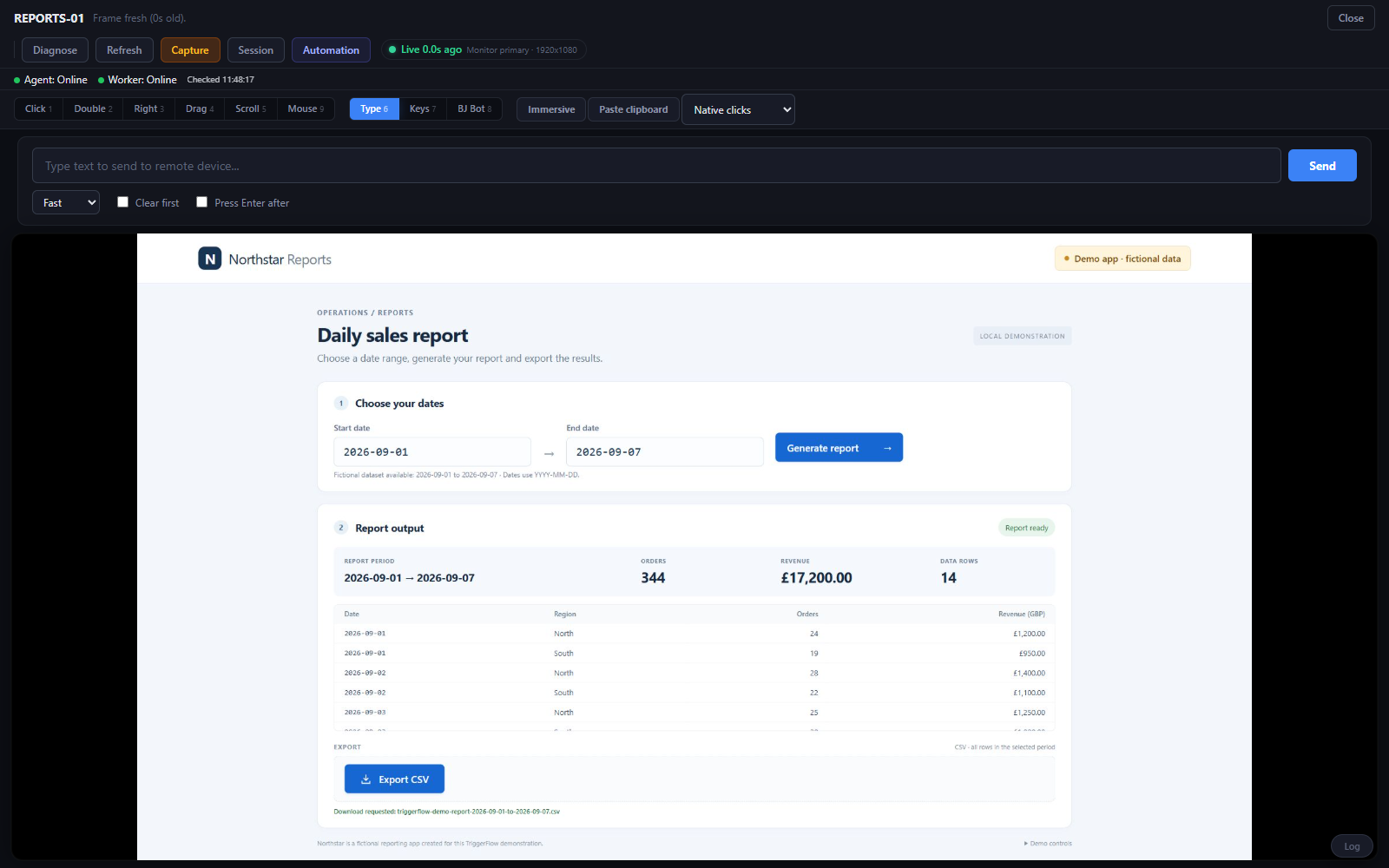
Switch to Live Feed and open the device’s Control view. Check the device name at the top and confirm that the intended application is visible before sending any commands.
Choose Capture to request a fresh screenshot, then wait for it to arrive. Check the frame age as well as the picture: a recent Last Seen value does not tell you how fresh the screenshot is. Remote control is already enabled in the video’s example setup.
 View full-size screenshot
 4. Pause the selected counter and check the response
Close Control, return to Table and choose Stop for the intended device and counter. Wait for a fresh update showing the expected state and a stable loop count. In the simulation, East’s Counter A pauses at 18 of 20 while West continues independently.
For native counters, Stop pauses monitoring for that counter. An action already in progress may still finish, so confirm the application has settled before making a remote change. Do not repeat the request just because an old screenshot has not changed; check command feedback, freshness and connectivity first.
5. Make a deliberate remote change
Open Control again and confirm that the intended counter is paused. Click inside the application field you want to edit and wait for execution feedback. Choose Type, tick Clear first if the new value should replace the existing contents, enter the text and choose Send. Check the text in the device’s field.
In the example, the new report label is East weekly summary. Keys sends Tab to focus the fictional application’s Apply label button, then Enter activates it. Wait for the application’s confirmation. Typing changes the field; applying the label saves that choice in this example app. Use the appropriate save or apply action for your own application.
6. Resume and verify the next output
Return to Table and choose Start for the same device and counter. Wait for Running and watch the loop count advance. Open Control and inspect a new output produced after the change.
The simulation shows East weekly summary in both the saved report title and file name after the next loop. In your own test, check the actual resulting file or application output as well as the dashboard status. The simulated result illustrates the sequence; validate command execution and output on your connected device.
7. Review a completed run and return to the fleet
After the run finishes, expand the device row and open History. Review the available start and end times, loop counts, profile, finish reason and captured images. The example finishes at 20 loops with Max Complete, and its end screenshot shows the updated report. Pausing a counter alone does not necessarily create a completed-run entry.
Clear the filter and return to Live Feed. Small tiles and Fullscreen tiles provide a broader fleet view. Available history and images depend on your capture and retention settings. For notifications when attention is needed, follow the separate dashboard-alerts tutorial and test delivery in your own setup.
- Confirm the device and active profile before sending commands.
- Check fresh state and screen evidence after each action.
- Validate the expected workflow result, not just the dashboard request.
- Repeat setup checks on each additional device and Windows session you plan to use.