
Watch the walkthrough
 Play tutorial 2:42
Written walkthrough. Follow the steps below alongside the video, then configure and test your own setup.
1. Prepare a harmless test
Choose a button that can be clicked safely in a test environment. Establish the expected screen before the click and the confirmation you should see afterwards.
Create a scenario and capture a distinctive image of the button. Set the trigger search region wide enough to include the button’s intended positions, while excluding unrelated windows.
2. Find the target again before clicking
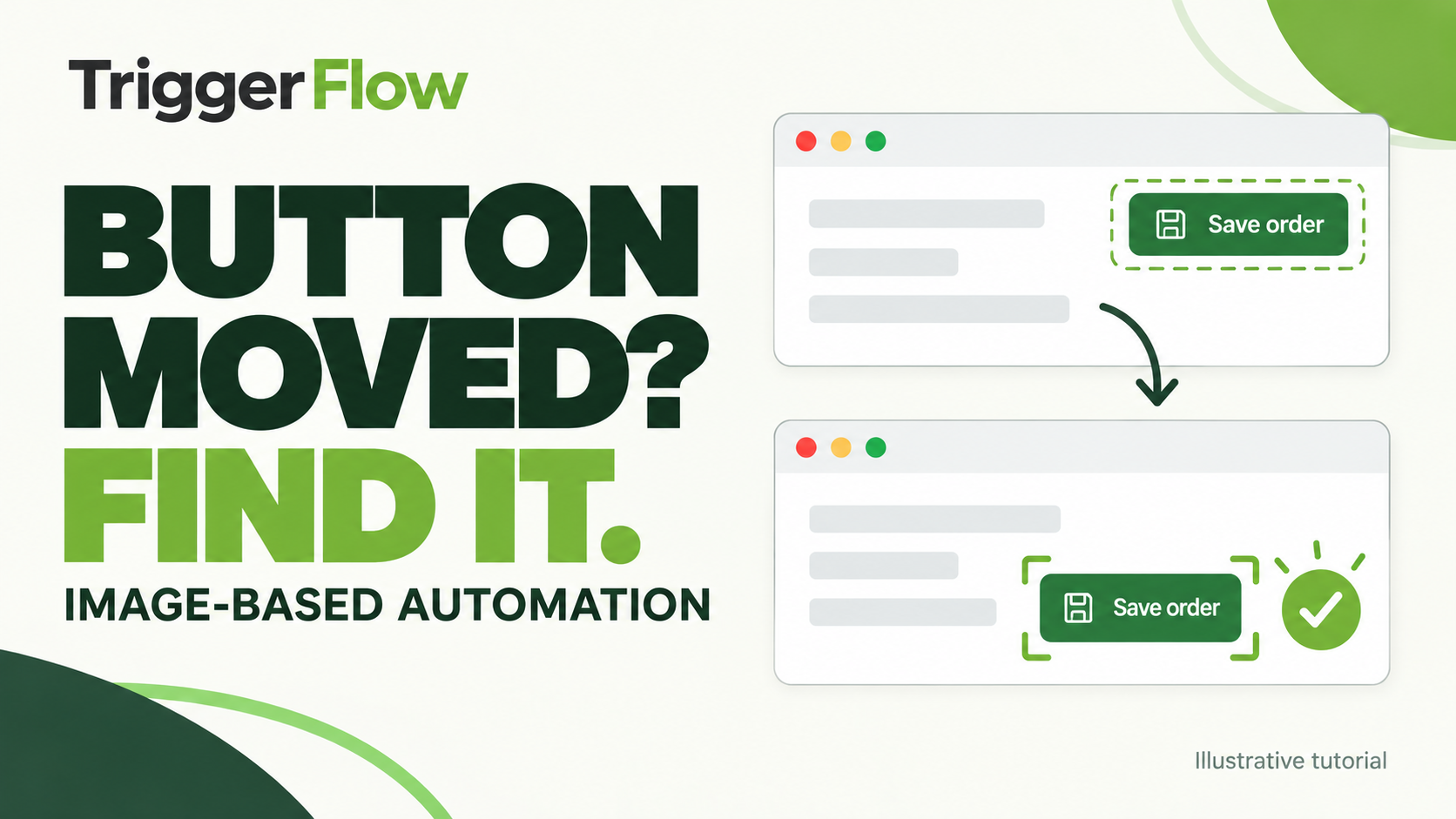
Add Image Click with the button template, an appropriate search region and a finite timeout. This action locates a matching image before clicking its centre, instead of replaying an old coordinate.
If the following step types a note, first target and focus its field. Add a check for the expected result after the click. Set a low maximum loop count during testing.
3. Test movement, absence and ambiguity
Run the same setup through these checks before using it for real work.
- Move the button within the search region and confirm that the correct target is found.
- Leave the button absent and confirm the timeout outcome.
- Show a similar button and check that it is not selected by mistake.
- Change display scale or theme and revalidate the template rather than assuming it will still match.
What this pattern improves
The click depends on finding the expected appearance, rather than on the target keeping one screen position. It still requires a suitable template, search region and match settings.
SmartClick uses template matching too, with different defaults. Neither action guarantees recognition after an arbitrary visual redesign.