
Watch the walkthrough
 Play tutorial 4:45
Written walkthrough. Follow the steps below alongside the video, then configure and test your own setup.
1. Define the rule and its visible outcome
The fictional Northstar Orders application displays Units available as a whole number from 0 to 999. The example allows processing from 10 through 999; values below 10 or a missing number lead to a hold message instead.
Choose a harmless test application and sample data with an observable outcome. Here, Process test order changes the order status from Not processed to Processed. Keep the displayed number steady throughout the capture and decision, and reset the test order between cases.
2. Reset and capture the number
Add Set Variable from Variables & Data before the capture. Name the variable stock_level and set its value to Unreadable. Resetting it at the start of every run prevents a missing capture from displaying an older result.
Add OCR Capture from Vision / OCR. Choose Number, select a tight region around the stock digits and save the result in stock_level. Exclude labels, borders and other figures. Leave currency parsing off for this whole-number example.
Leave Require number to be found unchecked so a missing capture can continue to the hold path. The example retains Unreadable when no number is captured. Validate this behaviour on your own screen before relying on it.
3. Compare the saved value with the screen
Add Message Box from Debug after OCR Capture. Enter the literal message Captured stock: ${stock_level}. The variable reference inserts the saved result into the message.
Keep the original stock field visible beside the message and compare the two values before choosing OK. The message box waits for your response, making it useful while building and checking this example.
4. Configure the decision and keep the action inside its branch
Add Inline If / Else from Control Flow. Choose OCR Number, then In Range, with a minimum of 10 and maximum of 999. Select the same numeric region. This condition performs a fresh screen read; it does not compare the saved stock_level variable. Keep the number unchanged between capture and this check.
Place the click on Process test order between If and Else. Put a hold-for-review Message Box in the Else branch, with no processing click there. End the scenario after End If so there is no unconditional processing action after the branch. Limit Counter A to one loop while testing.
5. Test both outcomes, the boundary and a blank field
The video illustrates the following four cases. Repeat them with your actual workflow and check both the captured value and the resulting application state; generated examples do not establish that OCR works on your particular screen.
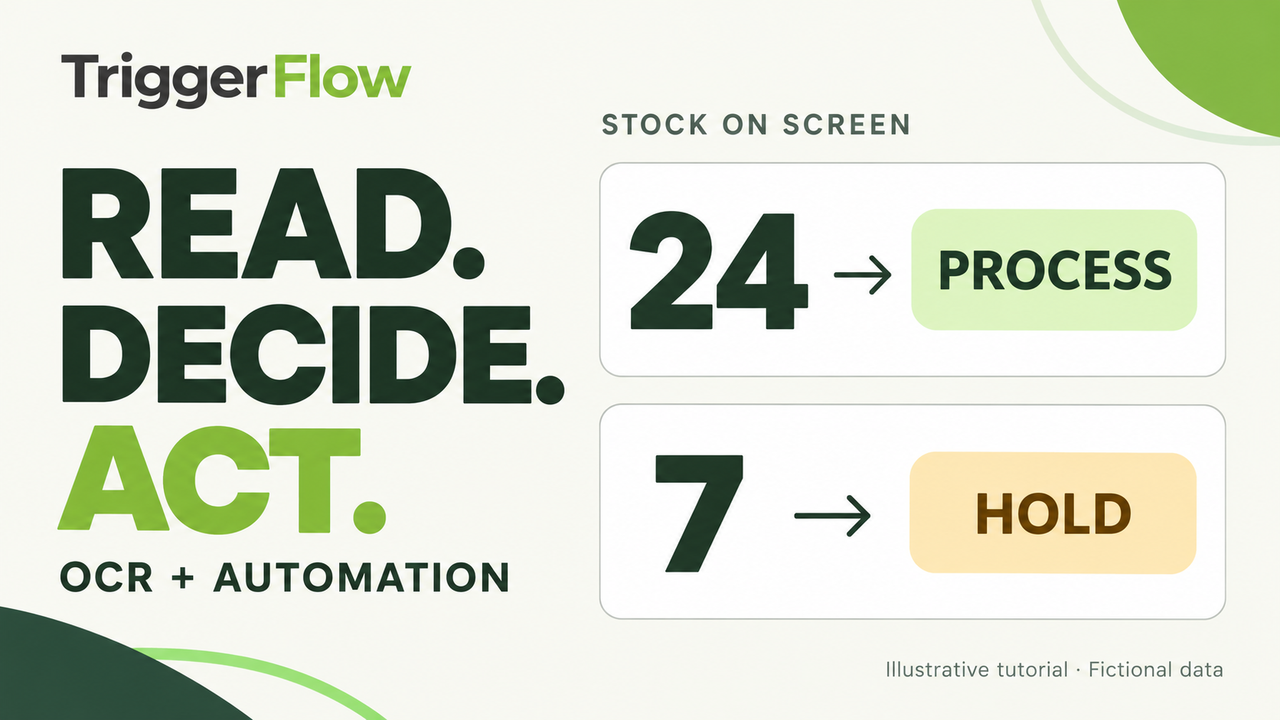
- 24 units: the message shows 24 and the in-range branch processes the test order.
- 7 units: the message shows 7, the hold message appears and the order remains Not processed.
- 10 units: the inclusive lower boundary allows processing; 9 would fall below the minimum.
- Blank field: the reset leaves Unreadable instead of a previous number, the hold branch is taken and the order remains Not processed.
6. Read, store, check and verify the result
Test at the window size, display scale, font and contrast you intend to use. An incorrect OCR read can look like a valid number, so compare the source, saved value and chosen outcome using representative samples. Handle missing and unexpected values deliberately.
Check the actual order state or output after the branch. A successful message or completed action list alone does not establish that the intended application result occurred. Recheck the workflow when the application or display setup changes.
When you need a stop condition instead
The video demonstrates a conditional branch. To monitor a region for a known warning such as Export failed and stop a scenario, configure Abort (Stop Conditions) with the OCR text rule and search region. Abort is a scenario stop condition, not an ordinary step reached once in the action list.
Test the normal screen, exact warning, similar text, unreadable text and a warning appearing during work. Add an appropriate timeout or loop limit. If a warning also needs an alert, configure that path explicitly; do not place the alert after a stop and assume it will run. OCR polling takes time and is not an instantaneous guarantee.